Homelab Configuration Night 2
Manual setup of Dell Optiplex 7050 mini PCs, BIOS configuration, network discovery, and Docker installation for Kubernetes homelab
Homelab Configuration Night 2
The manual setup of each machine
Each unit is a Dell Optiplex 7050 secured from a local business that was upgrading their machines. Its going to be rough for home labbers if the Laptop thing keeps going and businesses just give everyone a laptop and dock.
I guess you could always rack a stack of old laptops, but I realy enjoy the micro form factor desktops. they are small, quiet and powerful enough for most tasks. and probably cool better than a closed stack of laptops.
metal0
- IP: 192.168.1.190
- Mac: D8-9E-F3-90-E8-31
- Secureboot: Disabled
- Wake on Lan: Enabled for LAN
- Network device name: enp0s31f6
- Storage device name: nvme0n1
metal1
- IP: 192.168.1.191
- Mac: D8-9E-F3-10-E8-A8
- Secureboot: Disabled
- Wake on Lan: Enabled for LAN
- Network device name: enp0s31f6
- Storage device name: nvme0n1
metal2
- IP: 192.168.1.192
- Mac: D8-9E-F3-90-DD-2B
- Secureboot: Disabled
- Wake on Lan: Enabled for LAN
- Network device name: enp0s31f6
- Storage device name: nvme0n1
metal3
- IP: 192.168.1.193
- Mac: D8-9E-F3-90-E9-54
- Secureboot: Disabled
- Wake on Lan: Enabled for LAN
- Network device name: enp0s31f6
- Storage device name: nvme0n1
So the super annoying part to get was the network and storage device names. I have no idea what Dell call these, and BIOS has nothing to help. I remembered that when installing Ubuntu it shows up. So I ended up booting one of the units to ubuntu and starting the install off so I can get the info I need.
!!! EDIT "EDIT"
Yeah that didn't work. Installed ubuntu and ran the folowing commands to get names:
lsblk
- shows you the disk names as well as partitions and mount points.
ip link show
- Shows you network interfaces. For metal0 this was enp0s31f6. Never seen this before, im putting it down to "just Dell things".
More on disks....
So turns out we have to go back into the BIOS on each unit and disable RAID as well swapping it to AHCI.
Docker
Back on the development PC (My desktop) I had to install docker inside my WSL enviroment. Standard install procedure for docker.
- Set up the apt registry for docker:
# Add Docker's official GPG key:
sudo apt-get update
sudo apt-get install ca-certificates curl
sudo install -m 0755 -d /etc/apt/keyrings
sudo curl -fsSL https://download.docker.com/linux/ubuntu/gpg -o /etc/apt/keyrings/docker.asc
sudo chmod a+r /etc/apt/keyrings/docker.asc

# Add the repository to Apt sources:
echo \
  "deb [arch=$(dpkg --print-architecture) signed-by=/etc/apt/keyrings/docker.asc] https://download.docker.com/linux/ubuntu \
  $(. /etc/os-release && echo "${UBUNTU_CODENAME:-$VERSION_CODENAME}") stable" | \
  sudo tee /etc/apt/sources.list.d/docker.list > /dev/null
sudo apt-get update
- Install Docker
sudo apt-get install docker-ce docker-ce-cli containerd.io docker-buildx-plugin docker-compose-plugin
After that I had to add my user to docker.
sudo usermod -aG docker $USER
- Then I had to log out and back in to get the group changes to take effect. (Start a new WSL session)
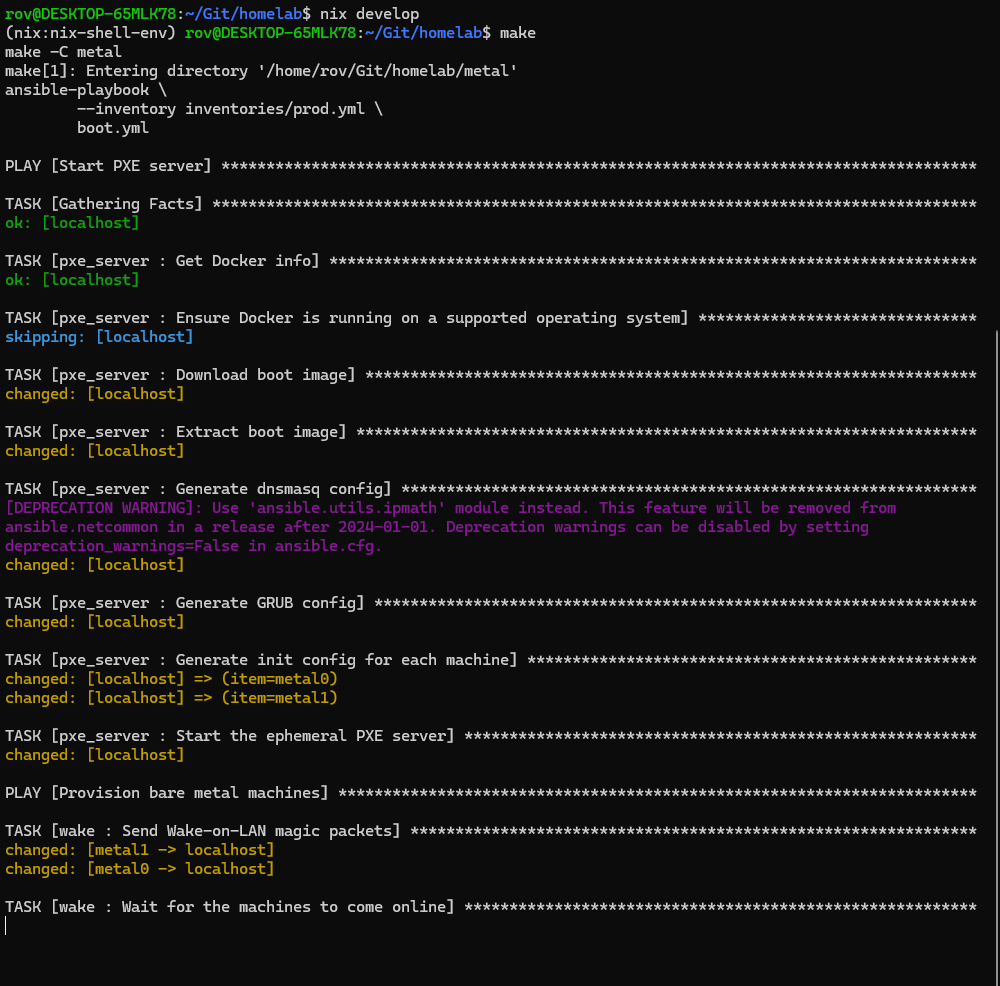
Next we can run nix develop to get back into the development enviroment, and finally "make"
The result of all the work so far: